The Inbox is the central entry point for digital cases from partner clinics. This guide shows how to monitor new submissions, review details, and approve cases into production.
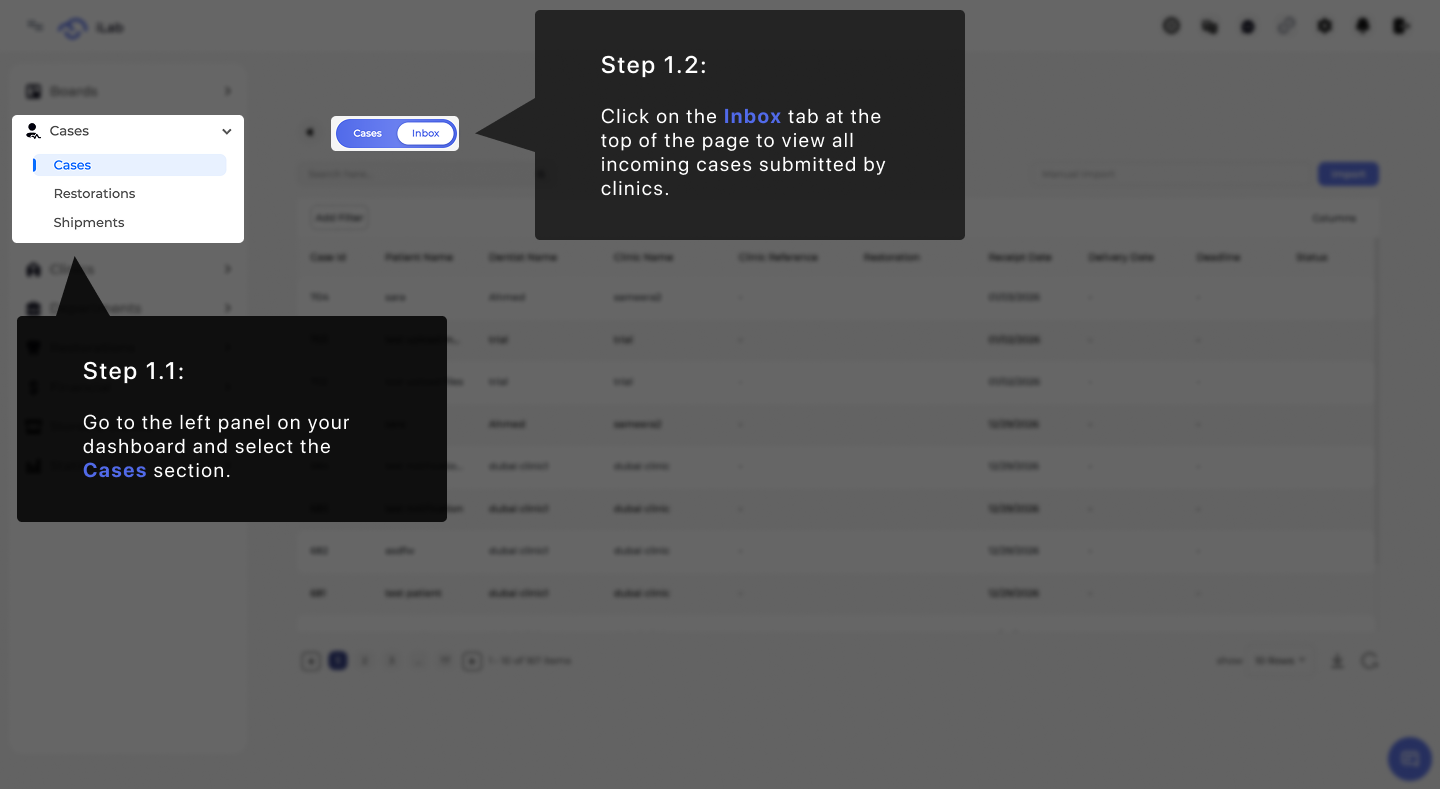
To find your new work, go to the menu on the left side of your dashboard. Click on the Cases section. Then, look at the top of the main page and click the Inbox tab to see all the new orders sent in by clinics.
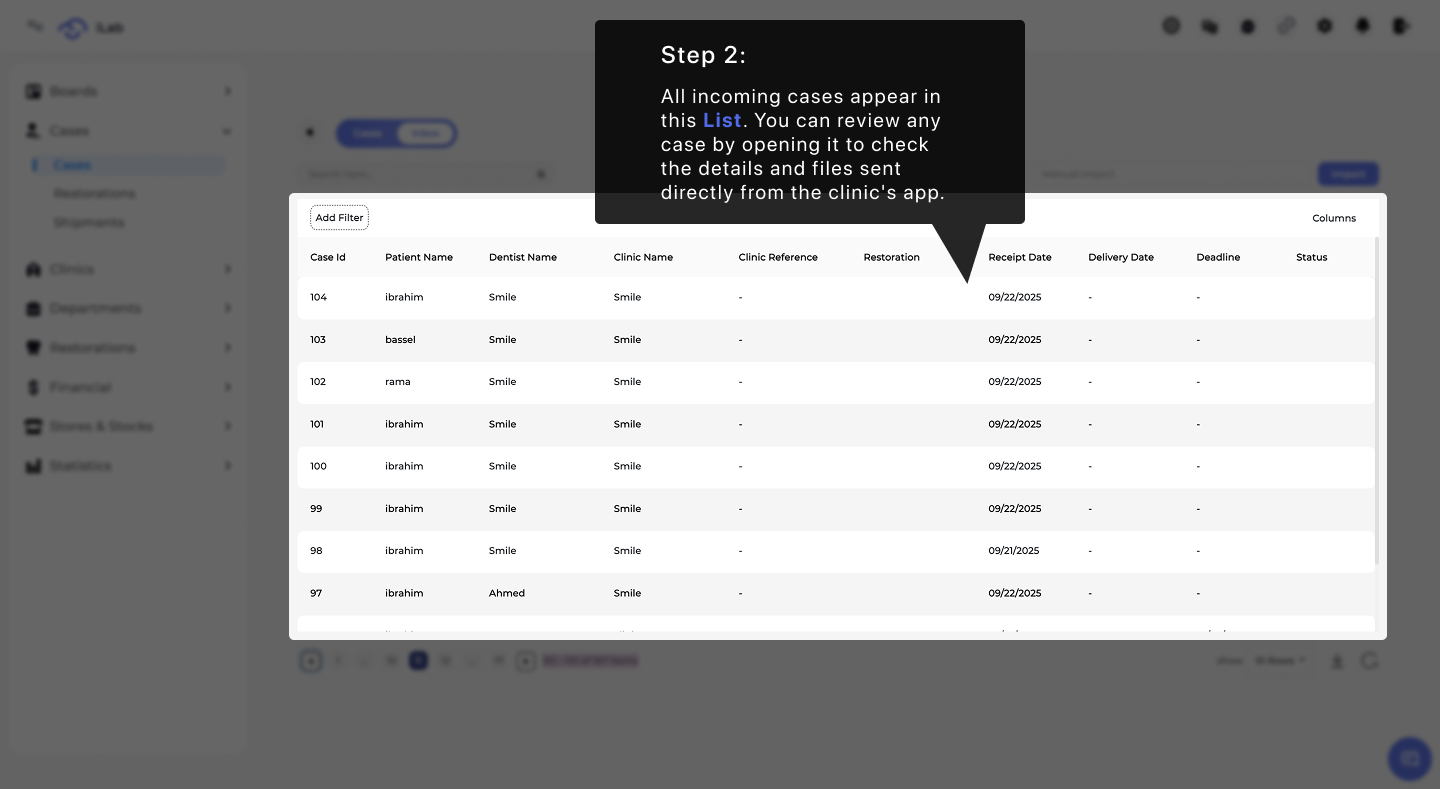
All new cases sent directly from a clinic’s app will appear in this list. You should open each case to look over the details and files the clinic sent. This helps you understand exactly what the lab needs to do for that order.
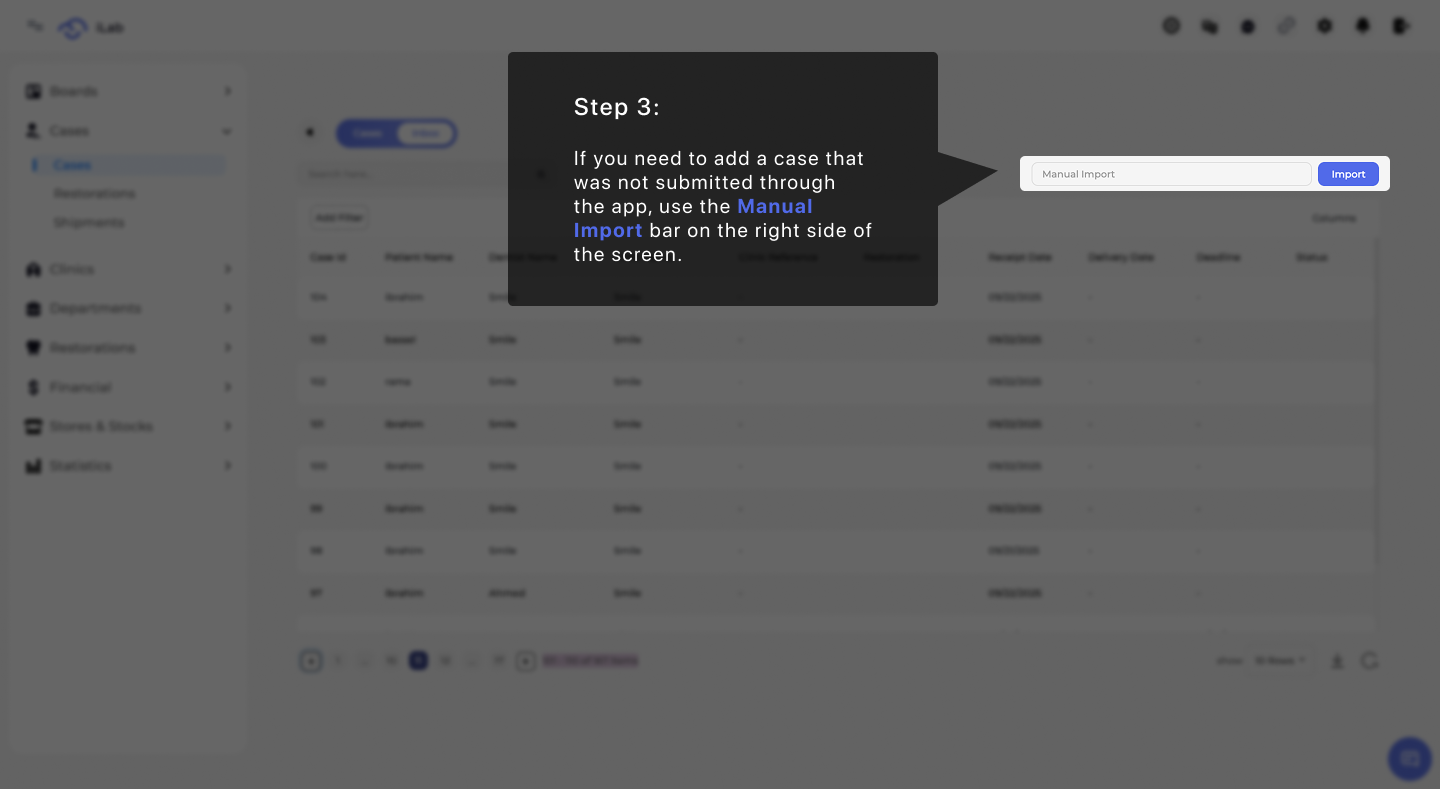
If a clinic is not connected to your lab's system, they will send you a case link. To add these orders to your list, paste the link into the Manual Import bar on the right side of your screen. This tool helps you keep all your work in one place. Instead of typing in every detail yourself, the link imports the information for you so you can start tracking the case immediately.
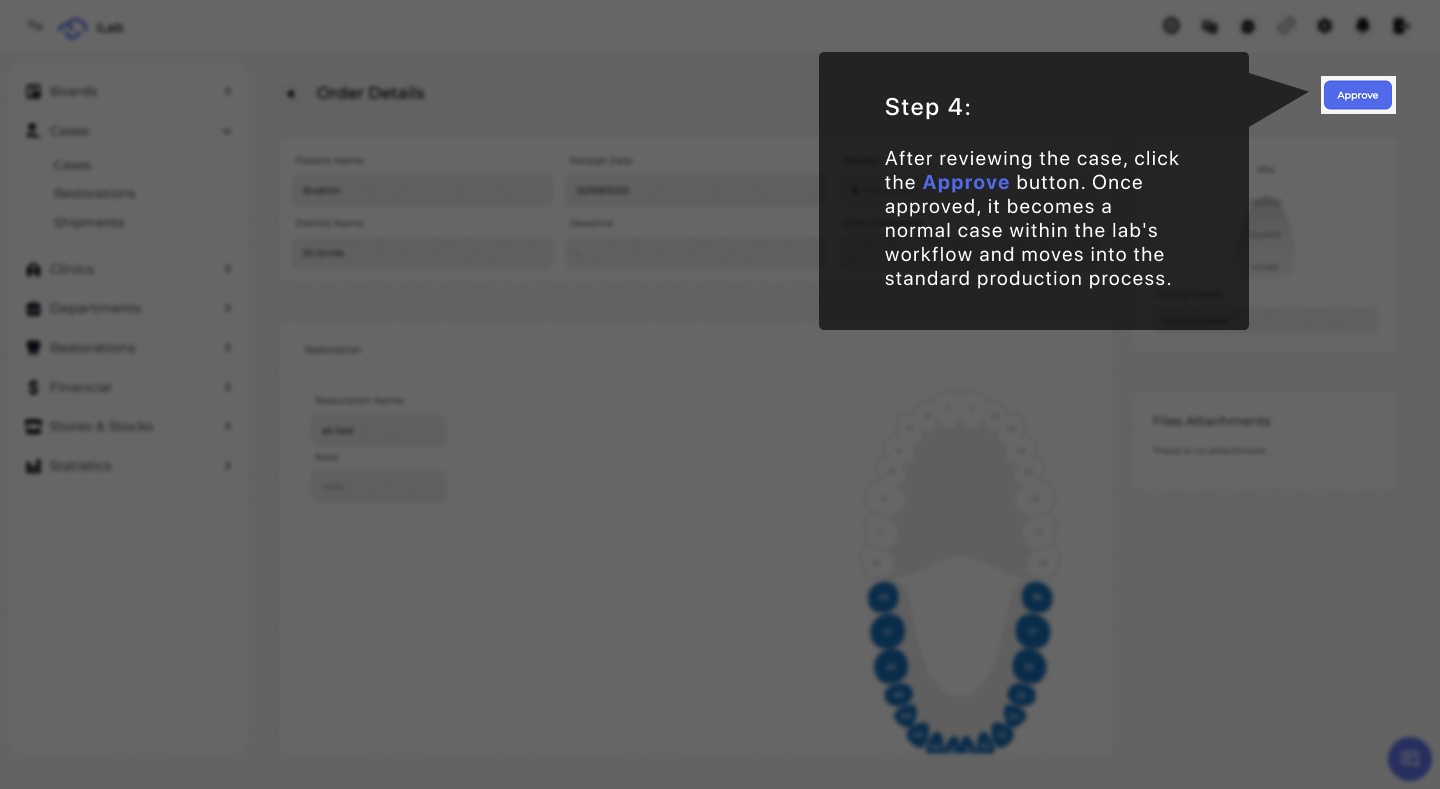
Once you have finished checking all the information and files for a new order, click the blue Approve button. After you click this, the order is no longer just a request in the Inbox; it becomes a normal case that moves into your lab's standard production workflow.